
Admitted Online New Student Steps
As an online student you are not new to the college setting, but you are new to MSUM! Therefore, you will need to complete and/or be aware of the items listed below.
As an MSUM student, you are assigned two unique IDs that grant you access to many services.
- StarID - 8-characters consisting of both letters and numbers.
- You have already received your StarID username and password. If you do not remember your StarID or password, please utilize the StarID Self Service page.
- Allows you to access eServices, D2L Brightspace, on campus WiFi, and more.
- Dragon ID - 8-digits consisting of only numbers.
- Used only at MSUM. Certain departments on campus will request this identifier to access your personal records.
Multifactor Authentication (MFA) adds an extra layer of security to your account by requiring a second verification step when you log in. You’ll set up MFA the first time you access your Dragon Email.
Getting Started with Your Dragon Email
As an MSUM student, you are assigned a Dragon Email account. Here’s what to expect when logging in for the first time:
- First-time login address
Use StarID@go.minnstate.edu when signing in the first time. - Regular login address
After setup, you’ll log in using StarID@go.mnstate.edu. - Your actual email address
This is what others will use to contact you: firstname.lastname@go.mnstate.edu
MFA Setup
On your first login, you will be prompted to complete your MFA setup using your StarID and StarID password.
Complete your email and MFA setup now:
Watch the video tutorial below.
As a new student, advising and registration look a little different during your first semester. To help you get started on the right track, advising and registration are connected to orientation and are designed to introduce you to the systems and policies you’ll use throughout your time at the university.
Based on your student type and individual needs, you will participate in the orientation, advising, and registration (SOAR) process in different ways. Please click on your student type below to learn more.
What is eServices?
eServices is MSUM’s online portal — use your StarID and password to log in and complete essential setup tasks for your student account.
| Task | What You Need to Do |
|---|---|
|
|
|
To keep your course enrollment secure, you must make a financial commitment 15 days before the semester begins. You can satisfy this by doing one of the following:
Then:
|
|
For your first semester, registration help is provided during SOAR (in-person or virtual). After that:
|
What to Do Right Now
- Log in to eServices using your StarID.
- Complete all three tasks above as soon as possible to avoid delays with financial aid, billing, or class enrollment.
Your Degree Audit Report (DAR) is your roadmap to graduation. Your DARs:
- Tracks completed coursework
- Shows which requirements are fulfilled
- Lists remaining degree requirements
You will view your DAR in eServices. eServices is MSUM’s online portal where you will complete essential steps, including
- Register for classes
- Pay your bill
- Accept financial aid
- View Degree Audit Report
What to do:
- Using the Tutorials below, review your Degree Audit Report in eServices
Tutorials:
To finalize your MSUM student record, you’ll need to complete the two items below using your StarID and password.
- Release of Student Information
MSUM protects your personal student records under federal and state privacy laws (FERPA and Minnesota Statute §13.32).
If you want to give a parent, guardian, or another support person access to your records, you must complete a release.
What to do:- Complete the Release of Student Information form.
- Complete the Release of Student Information form.
- Immunization Records
Minnesota law requires students born after 1956 and attending a Minnesota college to provide immunization dates for:- Diphtheria & Tetanus (TD or TDAP)
- Measles, Mumps, Rubella (MMR)
What to do:- Self-report your vaccination dates through the Online Immunization Form.
- Wellness Center Liability Form
Each individual utilizing the facility assumes the risk for any harm or injuries sustained.
What to do:
- Complete the Wellness Center Liability form.
Your Dragon Card is your official MSUM student ID. It gives you access to important campus services and spaces, including:
- Library check-in and resources
- After-hours building access
- Printing services
- Free or discounted admission to athletic events and campus activities
- And much more!
How to Get Your Dragon Card
- Upload your photo for your Dragon Card and indicate how you prefer to receive your Dragon Card
After you register for your classes, you can purchase textbooks and course materials in person or online at the MSUM Bookstore, located in MacLean Hall, or online through the Moorhead Bookstore website.
Estimated time: 15-20 minutes
This guide walks you through locating required textbooks and completing your purchase through the MSUM Bookstore.
Quick Start
If you're in a hurry, here are the basic steps:
- Visit the MSUM Bookstore website.
- Enter your StarID.
- Select one format for each required book.
- Add books to your bag.
- Review your order.
- Choose shipping or pickup.
- Complete payment.
Before You Start
Understanding a few common terms will make the process much easier.
- StarID
- Two letters, four numbers and two letters, e.g. ab1234cd. Your MSUM login username used for many campus services. You will use your StarID to look up textbooks and, in most cases, when charging textbooks to your university account.
- DragonID
- Your MSUM student identification number, which is, 8 numbers, e.g. 12345678. Students whose books are being paid for by an outside agency, such as Veterans Benefits or Workforce programs, may need to use their DragonID during checkout.
- Named Email
- Your MSUM email address in this format: firstname.lastname@go.mnstate.edu
- Inclusive Access
- A program that provides digital course materials automatically. The cost is added directly to your student bill, so you usually do not purchase those materials through the bookstore.
- D2L
- MSUM's online learning system where instructors may post links to digital course materials.
Visit the Bookstore Website
Go to www.mnstate.edu/bookstore.
Creating a bookstore account is optional. You can complete your purchase as a guest, but an account allows you to:
- View previous textbook purchases
- Track current orders
- Manage textbook rentals
- Convert rentals to purchases when available
Important: Your bookstore account is separate from all other MSUM accounts. Creating a bookstore account does not use your StarID login.
Step 1: Find Your Course Materials
Select the Textbooks Link
On the bookstore homepage, select the Textbooks link from the main navigation menu.

Enter Your StarID
Enter your StarID in the search field below the shopping cart and press Enter. The bookstore will display materials associated with your enrolled courses.
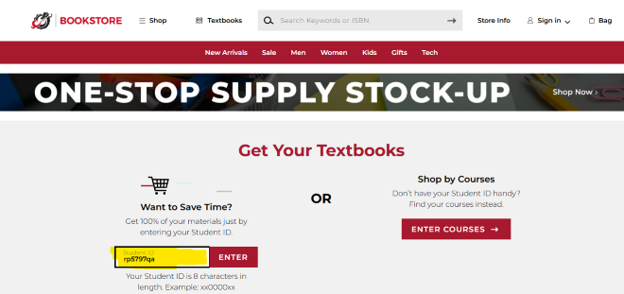
The bookstore will automatically display the courses associated with your current enrollment.
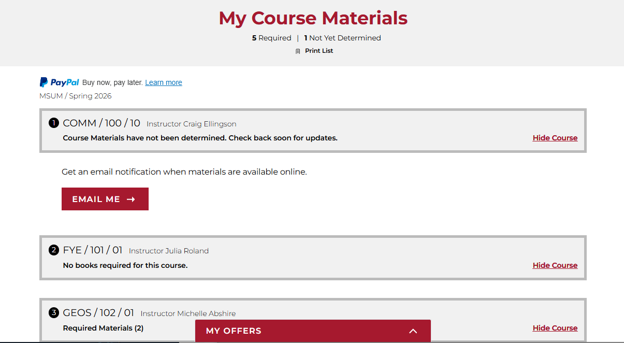
Step 2: Understand Course Messages
Each course listing contains important information about your class and any required course materials.
If Materials Are Not Available Yet
Sometimes instructors have not submitted textbook information to the bookstore. If this happens, you will see an option to receive updates.
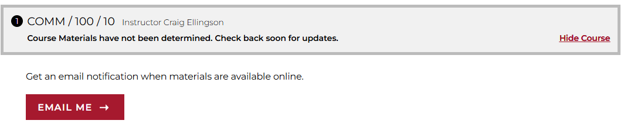
Recommended: Select Email Me so the bookstore can automatically notify you when materials become available.
Courses With No Required Textbooks
Some courses do not require traditional textbooks. If no purchase is necessary, the bookstore will display a message indicating that no action is needed.


Inclusive Access Courses
Some courses participate in the Inclusive Access program.
With Inclusive Access, your digital course materials are automatically provided for you, and the cost is added directly to your student bill. Since the materials are already included, you usually will not see an option to purchase them through the bookstore.
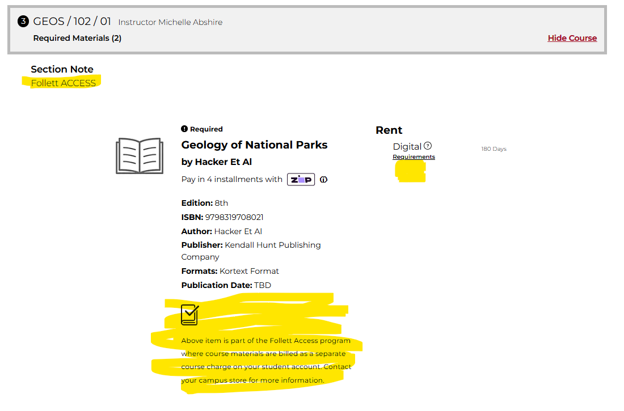
Important Information About Inclusive Access
- Access information may be provided through D2L.
- You may receive an email with activation instructions and access codes.
- Emails are sent to your named email address: firstname.lastname@go.mnstate.edu
- You may receive information about opting out of the program.
Courses with required materials will show how many items are needed.

Step 3: Choose Your Preferred Format
Many textbooks are available in multiple formats. You only need to choose one version of each required title.
Available options may include:
- Rent New
- Rent Used
- Buy New
- Buy Used
- Digital Edition
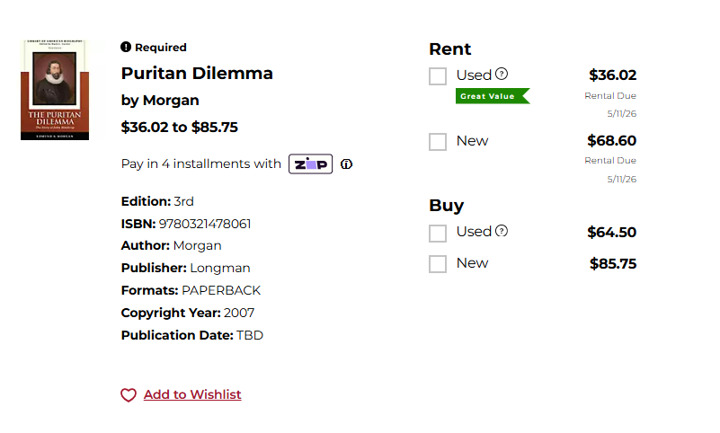
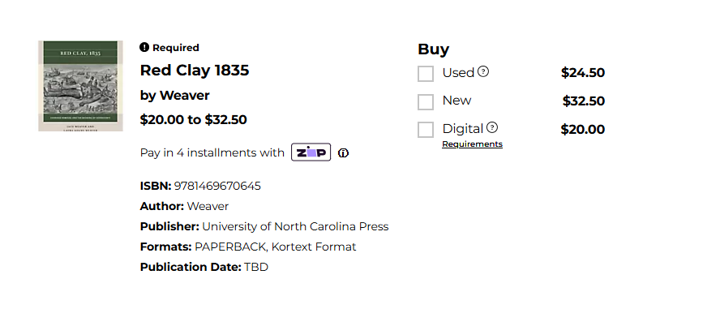
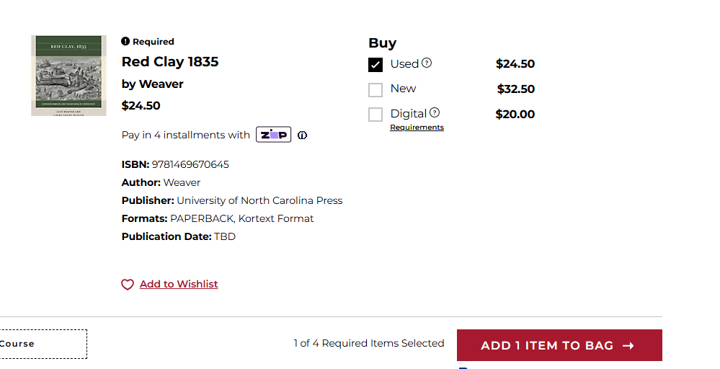
Tip: You only need one format per required textbook. Do not purchase both the digital and print versions unless your instructor specifically recommends it.
After making your selection, choose Add Item to Bag.
Step 4: Review Your Cart
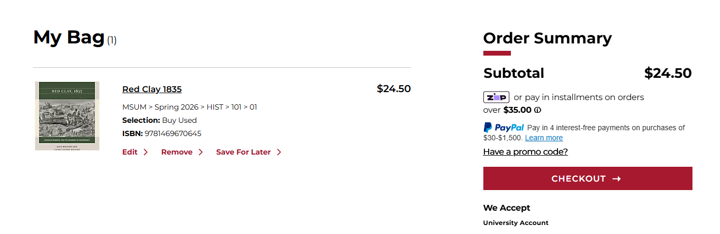
After selecting materials for all of your courses, choose View Bag.

Review the items in your cart carefully before continuing.
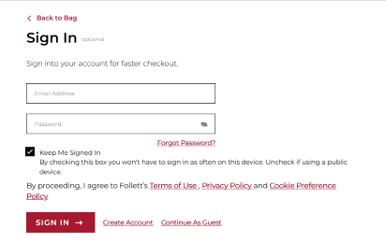
Step 5: Sign In or Continue as Guest
Before checkout, you can either sign in to a bookstore account or continue as a guest.
- Create an account to track orders, rentals, and past purchases.
- Guest checkout is available, but your textbook history will not be stored.
Regardless of your choice, an email address is required so the bookstore can send your order confirmation.
Step 6: Select Delivery or Pickup
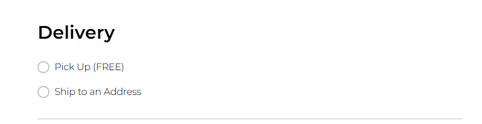
Choose the delivery method that works best for you:
- Ship to Home
- Free In-Store Pickup
Step 7: Complete Payment
Eligible students may charge up to $600 in course materials directly to their university account.
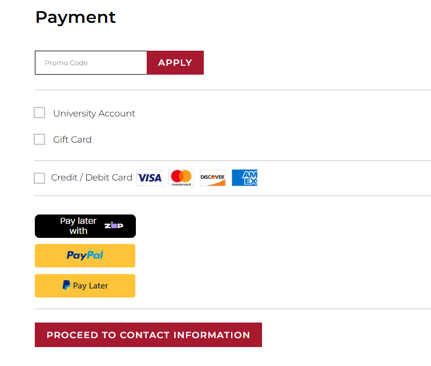
Using a University Account?
- If Veterans Services, Workforce programs, or another agency is paying for your books, enter your DragonID.
- All other students should enter their StarID.
Rental Textbook Information
Rental textbooks require a credit card to be stored as collateral, even if the rental is charged to your university account.
The card is kept on file in case the rental textbook is not returned.
Important: Unreturned rental textbooks may result in replacement charges.
Common Mistakes to Avoid
- Buying both a print and digital version of the same textbook.
- Ignoring the Email Me option when textbooks aren't available yet.
- Using the wrong email account for Inclusive Access materials.
- Mistaking a Dragon ID for a StarID.
- Forgetting to return rented textbooks by their due date.
Need Help?
If you have questions about ordering course materials, the MSUM Bookstore is happy to help.
- Email: msum@bkstr.com
- Phone: 218.477.2111
MSUM is committed to creating a safe and respectful campus community. As part of this commitment, all new students are required to complete the Gender-based Violence Prevention Training (GVPT) developed by the Minnesota State system.
If you have questions or need support, contact the MSUM Title IX Coordinator.
What to do:
- Complete the Gender-based Violence Prevention Training (GVPT) in D2L Brightspace.
- Please note, you will not be able to access this training in D2L Brightspace until 2 weeks prior to the start of your first semester.
Tutorial: How to Log in to D2L Brightspace
Complete the tasks only if they apply to your situation.
Apply for Tuition Reciprocity (ND or WI residents)
If you live in North Dakota or Wisconsin, submit the tuition reciprocity application to receive the reduced rate. Complete this early to ensure your benefits are applied.
Register for a Parking Permit
If you’re bringing a vehicle to campus, purchase your parking permit before the semester begins. Permits are required to park in campus lots.
Connect with Accessibility Resources
If you need academic, housing, or testing accommodations, work with the Accessibility Resources Office to set up support before classes start.
Use Military or Veteran Benefits
If you are currently serving, a veteran, or military-connected student, contact the Veteran, Service Member & Family Success Center to activate your education benefits and access available resources.
Choose a Preferred Name or Pronouns
If you'd like your preferred name or pronouns reflected in campus systems, submit a request to update your information.
Know MSUM’s Core Technology Tools
For effective online learning, it is essential that you know MSUM's core technology tools to help you persevere through the semester.
- D2L Brightspace: The “homepage” for your courses
- Microsoft 365: Productivity tools for learning
- Kaltura Mediaspace: Creating and sharing videos for learning
Learn About MSUM’s Student Support Resources
MSUM provides personalized student support to assist you with everything from academic planning, advising, tutoring, and career development to a free MAT bus ride anywhere in Moorhead and Fargo. Check out all the support services available to you as an MSUM student.